Windows Laptop into Wi-Fi Hotspot
These days, many people carry around multiple gadgets that are Wi-Fi capable, such as tablets, e-readers, cell phones, laptops, etc. If you are in a location that only has wired networks, you can now use software to turn your laptop or PC into a Wi-Fi hotspot that can be used by all of your favorite gadgets. Once the software is installed, you can check out Facebook on your tablet, download books on your Kindle, check your bank account balance on your phone, and run payroll software on your laptop, all using the same high speed Wi-Fi connection. After all, how terrible would it be to run an online business and be unable to pay your employees because there was no internet connection?
[adsenseyu1]
Use Virtual router to make your Windows Laptop into Wi-Fi Hotspot:
Virtual Router is a software based router which is completely free and open source ,which allows PCs running Windows 8, Windows 7 or Windows Server 2008 R2 work as a Wi-Fi hotspot. Virtual Router enables users to wirelessly share any internet connection (Wi-Fi, LAN, Cable Modem, Dial-up, Cellular, etc.) with any Wi-Fi device (Laptop, Smart Phone, iPod Touch, iPhone, Android Phone, Zune, Netbook, wireless printer, etc.) Devices can connect to Virtual Router just like any other physical Wi-Fi hotspot or access point secured with WPA2 security.
Setup Virtual Router:
- Download and install the Virtual Router application.
- Exactly after your installation is complete it will open up the application. Windows 8 users can create a shortcut of the application by navigating to Program Files(x86) folder → Virtual Router→right click on VirtualRouterClient.exe and select create a shortcut.
- From the Virtual Router window user can add a SSID name which will be access point (Wi-Fi) name ,then the password for access and which connection you need to share for example Local Area Connection or Wirless connection. (Note: You can create Wi-Fi access points even with your Wireless connection)

- Once you have provided the basic information click on “Start Virtual Router” button.
- Check your Wi-Fi enabled device (your smartphone or tab). You will now find the new Wi-Fi access point. Select that enter the password and connect.
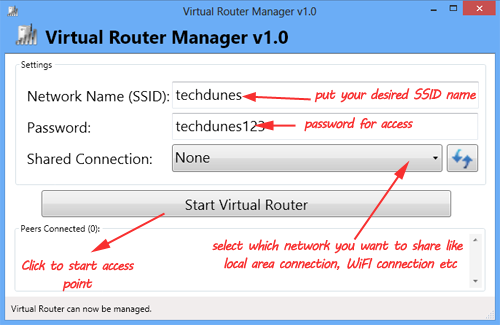
Note: You should have Microsoft .NET Framework 3.5 or higher as pre requisite in order for this application to work. It’s compatible only with Windows 8, Windows 7 or Windows Server 2008 R2.
Windows Laptop into Wi-Fi Hotspot advantages:
- No need to spend money on buying new device for Wi-Fi connectivity.
- Best security with WPA 2.
- Virtual-Router application is a freeware so no need to spend money on purchasing any software.
Limitation: You may not get great Wi-Fi range as compared to any physical Wi-Fi router.
This freeware application can be of great help especially if we don’t want to spend additional penny on purchase of new devices.
Learn more: Virtual Router Website.
Hope this helped, do comment and don’t forget to subscribe us. 
purchase lasuna without prescription – diarex online order order himcolin sale
It’s actually a great and helpful piece of information.
I’m happy that you just shared this helpful info with us.
Please keep us informed like this. Thank you for sharing.
I was just looking for this information for a while. After six hours
of continuous Googleing, at last I got it in your website.
I wonder what is the lack of Google strategy that don’t rank this
type of informative web sites in top of the list. Generally the top sites are full of garbage.
Great blog here! Also your web site loads up very fast!
What web host are you using? Can I get your affiliate link to your host?
I wish my website loaded up as quickly as yours lol